
Update Connection Settings: switch connection type / update Bluetooth identifier
Use this guide when:
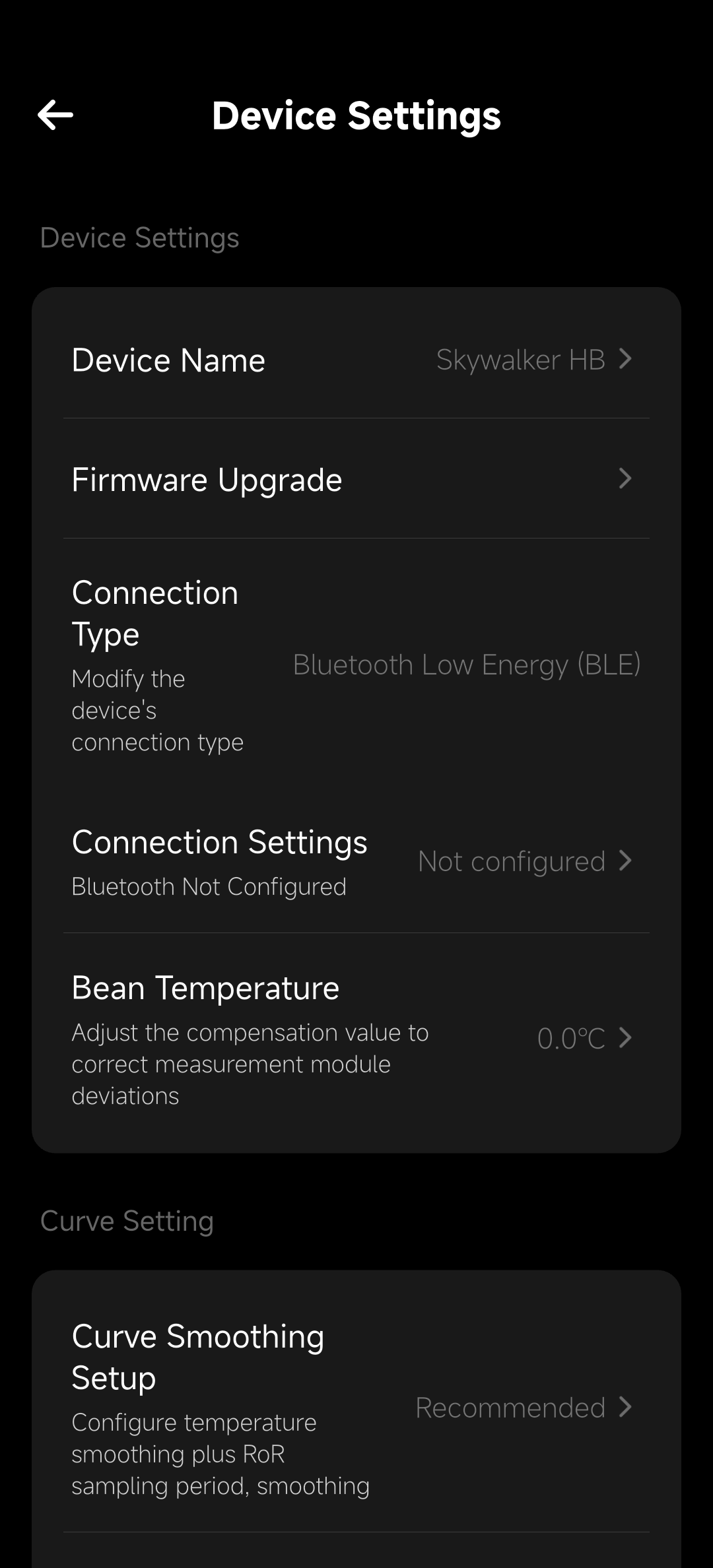
- The device is already in your HiBean device list, but on this platform it shows “Not configured / Bluetooth not configured / No Bluetooth identifier on this platform”
- You want to switch between BLE ↔ SPP ↔ Serial ↔ Wi‑Fi (when the model supports multiple connection types)
On the device settings page, use Connection Type and Connection Settings together: the first chooses the link type, and the second stores the platform-specific Bluetooth identifier, serial port, or IP address.
Quick Scenarios
1) Fix “Not configured / Bluetooth not configured”
Use this when you see Connection Settings: Not configured (or “No Bluetooth identifier on this platform”).
Follow Step 1 → Step 2 below to configure once on this platform.
2) Switch connection types (BLE/SPP/Serial/Wi‑Fi)
Use this when your model supports multiple methods and you want to switch (for example BLE → SPP).
Use Step 1 to select the target connection type, then complete the required configuration in Step 2.
3) Cross-platform use (new platform requires re-setup)
Use this when the device is already added, but you’re using it on a new platform (for example iOS → macOS/Windows) and need to reconfigure the connection identifier.
Follow Step 1 → Step 2 below. For the explanation, see:
Configuration Steps
- Choose the correct Connection Type
- Open Connection Settings and complete the required configuration
Even if a model only supports one connection type, HiBean still shows these entries so the setup entry remains available.
Step 1: Open “Connection Type / Connection Settings”
- Open HiBean → go to Devices → open the target device.
- Go to the device Settings page.
- Find:
- Connection Type (switch BLE/SPP/Serial/Wi‑Fi)
- Connection Settings (configure Bluetooth identifier / serial port / IP, etc.)
If you see Connection Settings: Not configured (or a message like “No Bluetooth identifier on this platform”), you need to configure it once on this platform.
Step 2: Configure based on the connection type
A) BLE / SPP (Bluetooth)
Select BLE or SPP in Connection Type, then open Connection Settings and follow the scan/bind flow.
Notes:
- On a new platform, this is expected: HiBean stores a per-platform Bluetooth identifier for reliability.
- Windows + SPP: HiBean’s device list is usually built from Windows paired devices, so pair in Windows first for this flow. See: Windows Classic Bluetooth (SPP)
- macOS + SPP: the list comes from a nearby inquiry scan, so keep the device discoverable/pairable
See: macOS Classic Bluetooth (SPP)
B) Serial (COM / USB)
Select Serial in Connection Type, then open Connection Settings:
- Pick the correct serial port (e.g.,
COMxon Windows, or a USB-serial device). - Configure serial parameters if prompted (depends on the model).
SPP direct and serial mapping differ in setup and failure modes:
C) Wi‑Fi (Socket / IP)
Select Wi‑Fi in Connection Type, then open Connection Settings and enter the device IP address.
FAQ
I switched the connection type but it still shows “Not configured”
Switching the connection type only tells HiBean which link you intend to use. The actual connection info (Bluetooth identifier / serial port / IP) still needs to be configured in Connection Settings.
Reconfiguring on a New Platform
This is expected across platforms: Bluetooth identifiers and permission models differ by OS. HiBean stores connection identifiers per platform.
See also: