
Smola
Smola S5
Connection: Bluetooth Low Energy (BLE) on mobile, Classic Bluetooth on Windows
Platform Support: Android, iOS, Windows
Where to Buy: You can purchase this device from our Official Online Store.
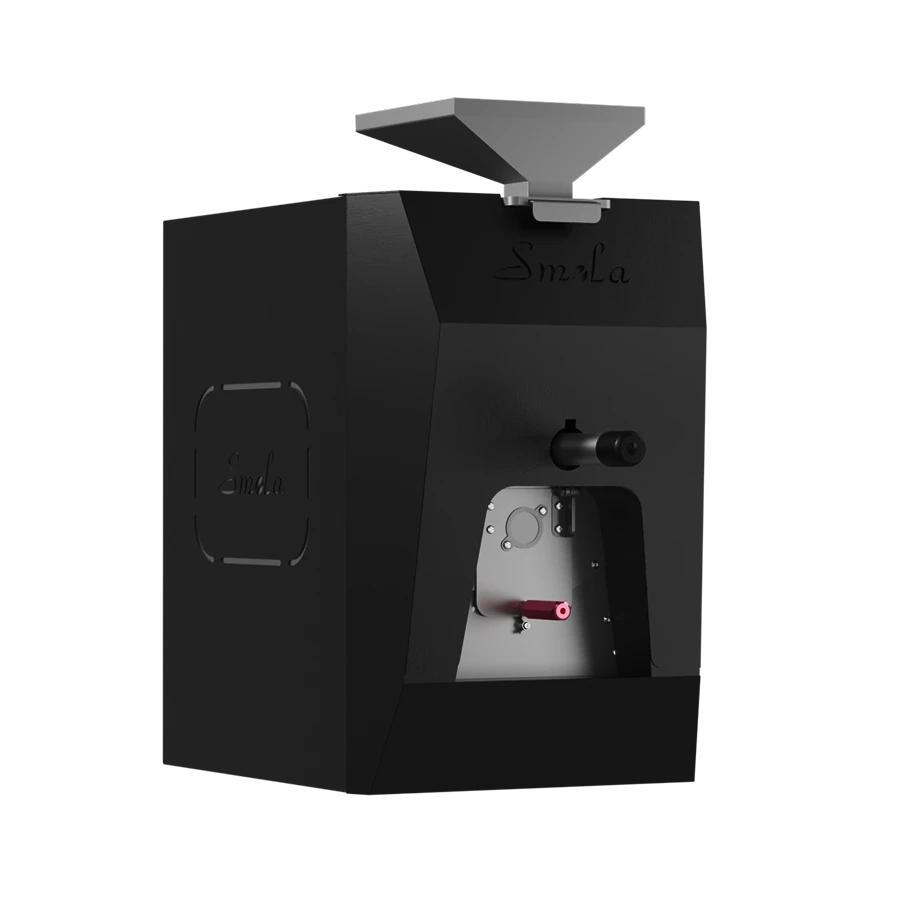
Connect Smola in HiBean
Recommended connection method by platform:
- Android / iOS / macOS: add via BLE (Bluetooth Low Energy)
- Windows: add via SPP (Classic Bluetooth Serial)
Android / iOS / macOS: Add via BLE
- Open HiBean → go to Devices → click +.
- Choose Roaster → Smola → S5.
- Wait for the scan result and select your Smola to finish binding.
Tip: If you can’t find the device, make sure it’s powered on and keep it close (1–2 meters).
Windows: Add via SPP (Classic Bluetooth)
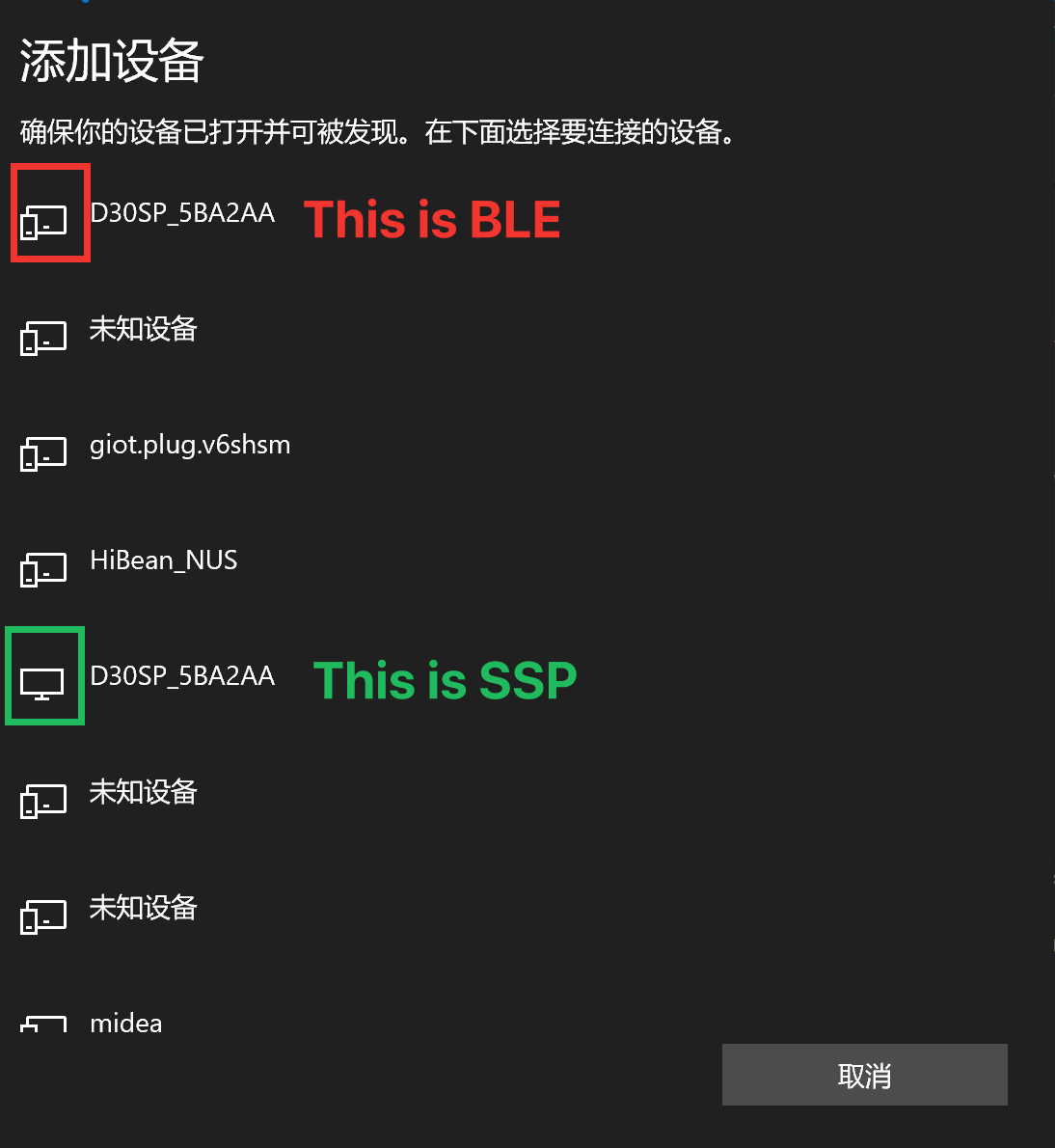
On Windows, Smola may advertise both BLE and SPP (Classic Bluetooth Serial) at the same time, so you might see two entries with the same name when adding a Bluetooth device.
Before continuing, make the correct choice in the Windows “Add device” screen:
- Choose SPP: usually the one with a “monitor/PC” icon (green box in the screenshot)
- Avoid BLE: usually the other one (red box in the screenshot)
After that, follow this guide to complete pairing and bind the device in HiBean:
Documentation
Resources
- Firmware Packages & Release Notes — latest firmware images and version history.
- Firmware Upgrade Utility — flashing tool packaged together with firmware files.
- Video Tutorials — step-by-step walkthrough of upgrade and daily operation.
- Artisan Configuration Files — ready-to-import profiles for Artisan logging.