
Deep Inventory Management
HiBean 1.5.0 adds a more complete inventory workflow for green bean batches. The goal is not just to store a purchase weight once, but to continuously track the current stock of a specific batch, its warning line, stocktake corrections, and roasting-driven stock changes.
Entry:
Archive > Green Bean Management
Who This Is For
- Roasters who want batch-level green bean inventory tracking
- Users who want roasting records to automatically deduct or return inventory
- Anyone who needs low-stock reminders, abnormal stock checks, inventory analysis, and inventory detail review
Who This Is Not For
- Anyone looking for a purchasing, costing, or SKU warehouse system
- Users who only want to store a purchase weight without ongoing stock tracking
- Workflows that require a public multi-batch bean allocation UI
Before You Start
- Update the app to
1.5.0or later. - Open
Archive > Green Bean Management. - Make sure your green bean batches already exist.
- A newly created batch does not enable inventory tracking by itself.
- Only batches with Initial Inventory or Inventory Check recorded will enter inventory tracking.
Standard Workflow
- Open a batch from Green Bean Management.
- Use Initial Inventory or Inventory Check to enable tracking.
- Set a Warning Line and toggle the low-stock reminder if needed.
- Roast as usual. Creating, editing, or deleting roast records automatically deducts or returns inventory for tracked batches.
- Use the Green Bean Management overview card to check total stock, today's change, warnings, and analysis.
- Use batch detail to review current stock, cumulative consumption, estimated remaining roasts, and Inventory Details.
- Use Inventory Warning, Batch Inventory Check, and Inventory Analysis to correct issues and review changes.
Step-by-Step
1. Start from the Green Bean Management overview card
The overview card is the fastest way to see total stock, today's changes, low-stock entry points, and the analysis entry.
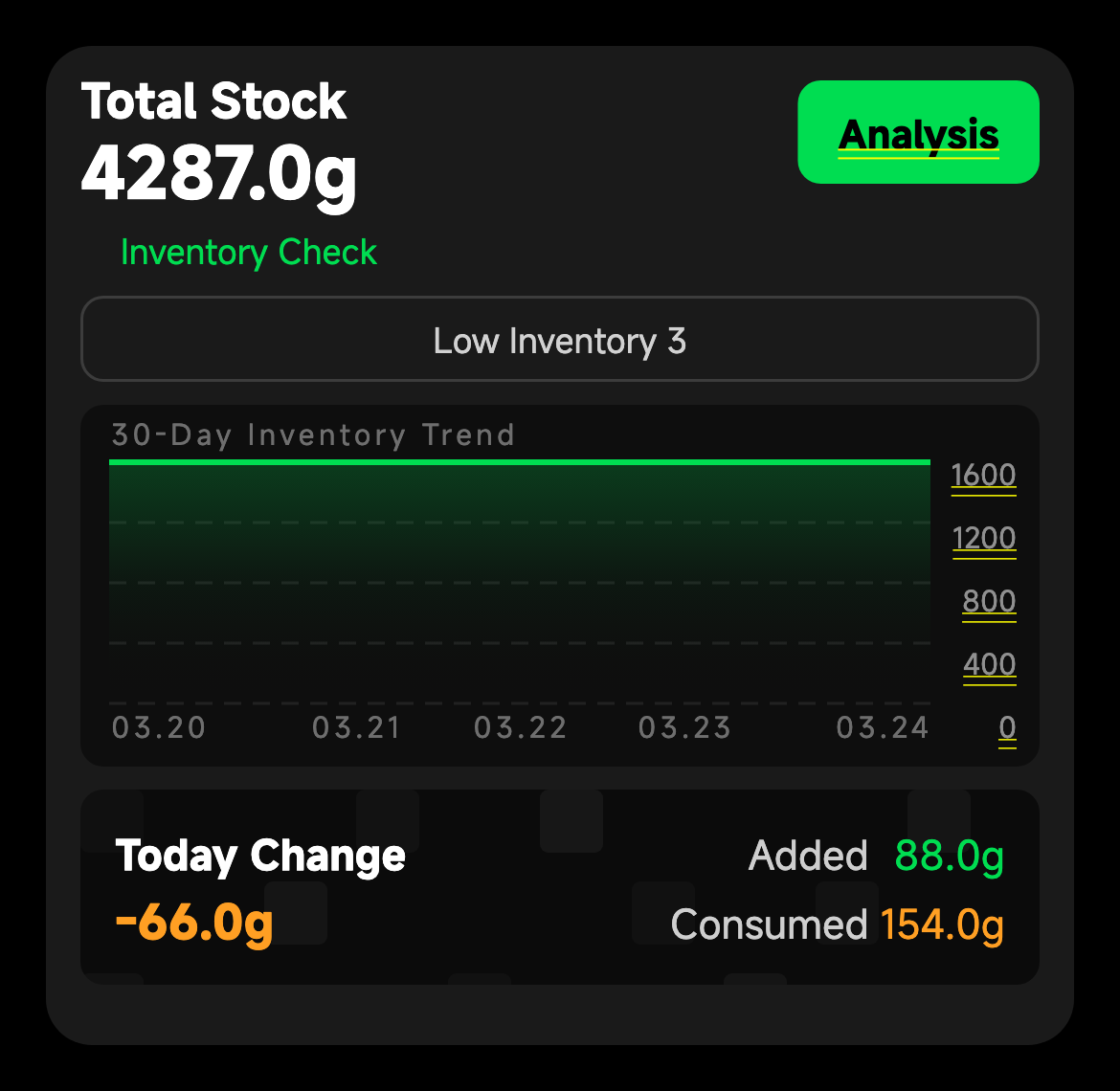
From here you can jump directly to:
Inventory Check- the warning page
Inventory Analysis
2. Enable tracking from batch detail
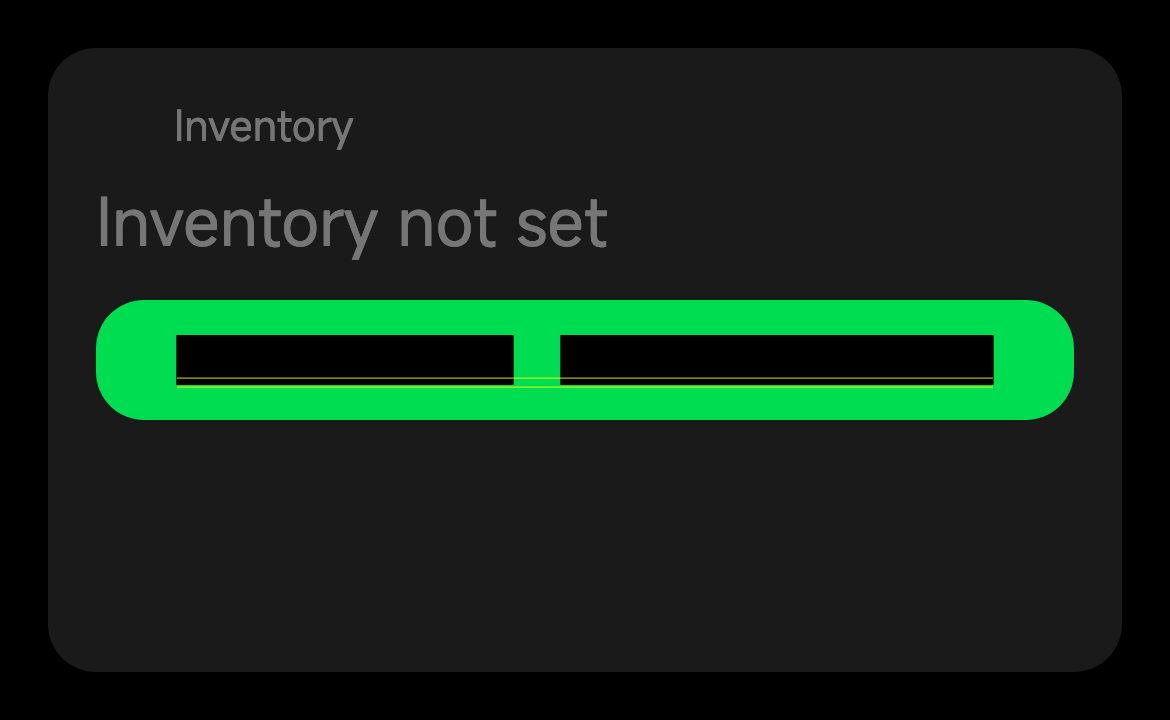
If a batch is not tracked yet, the detail page shows an unset inventory state. Tap Initial Inventory and enter the current real stock to start tracking it.
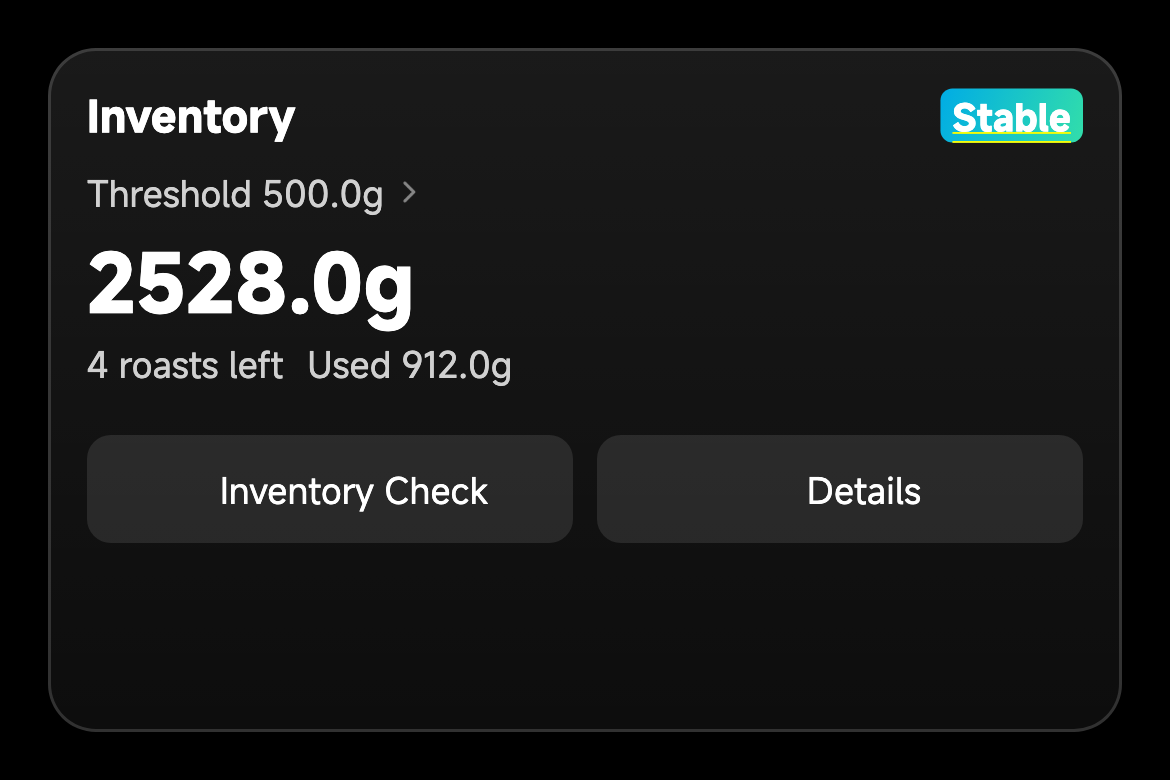
After tracking is enabled, the detail page switches to the inventory card and shows remaining stock, estimated roasts left, and cumulative usage. From then on, stock corrections use Inventory Check.
3. Set the warning line
Once tracking is enabled, you can set a Warning Line and choose whether low-stock reminders stay on.
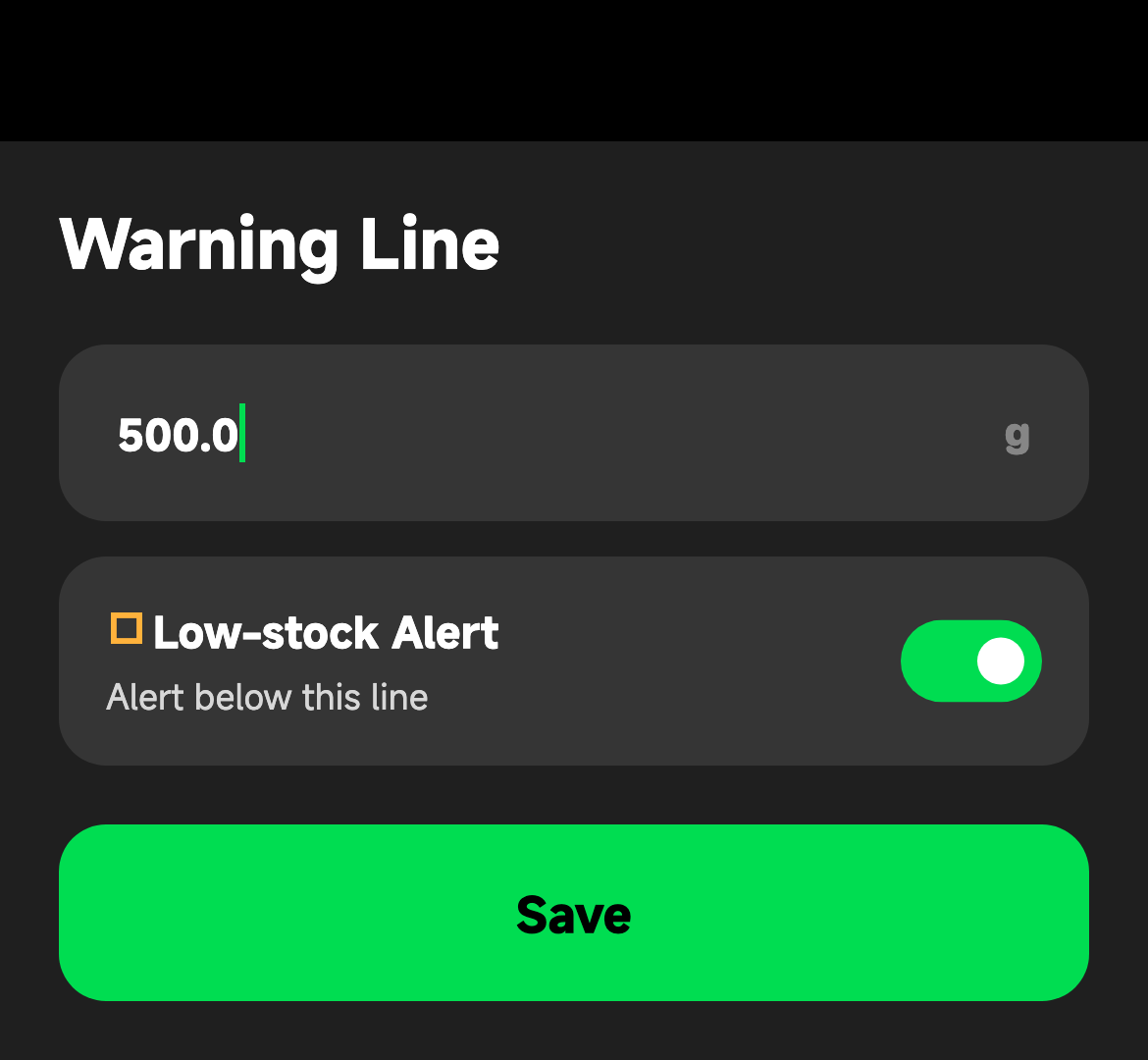
Recommended usage:
- Set the warning line to your real safety buffer
- Turn the reminder off if you do not want low-stock prompts
- Turning reminders off does not disable inventory tracking
4. Let roast records write inventory changes back automatically
When inventory tracking is enabled:
- Creating a roast record deducts inventory
- Editing a roast record recalculates the inventory change
- Deleting a roast record returns the deducted inventory
If a batch is not tracked yet, roast records do not apply inventory rules and the batch does not show inventory UI.
5. Use the warning page for low and abnormal stock
The warning page highlights the batches that need attention first:
- Low: stock is at or below the warning line
- Abnormal: stock has already gone negative
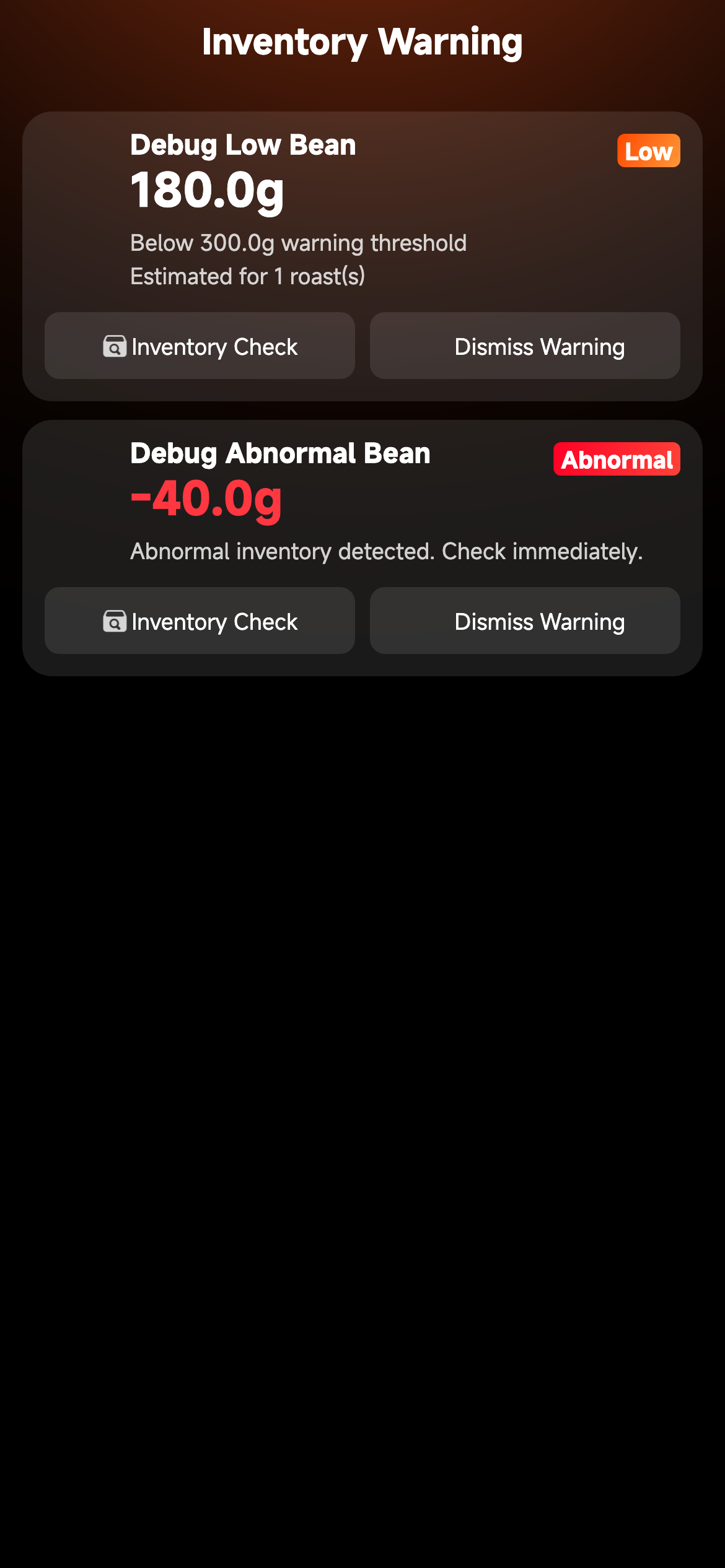
On this page you can:
- open Inventory Check to correct the real stock
- use Ignore Warning for low stock, which effectively turns off low-stock reminders for that batch
- hide an abnormal warning temporarily, which should not be treated as a resolved issue
6. Use batch inventory check for fast correction
If several batches need correction at once, go to Batch Inventory Check.
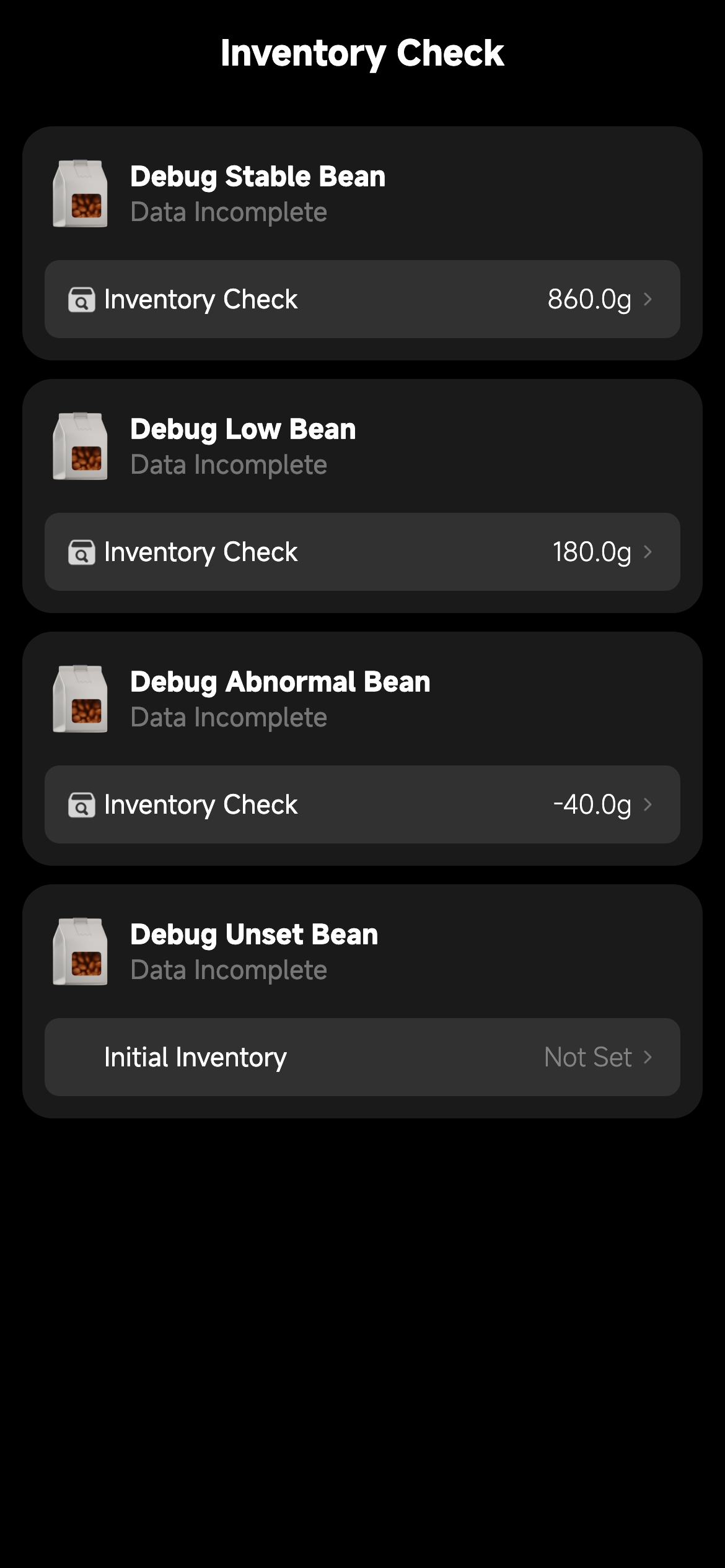
This page lists both tracked and untracked batches:
- tracked batches show Inventory Check
- untracked batches show Initial Inventory
It is useful after receiving beans, after a physical count, or whenever you need to correct multiple batches quickly.
7. Review changes in Inventory Analysis and Inventory Details
Use Inventory Analysis to understand both your current inventory structure and which days changed the most.
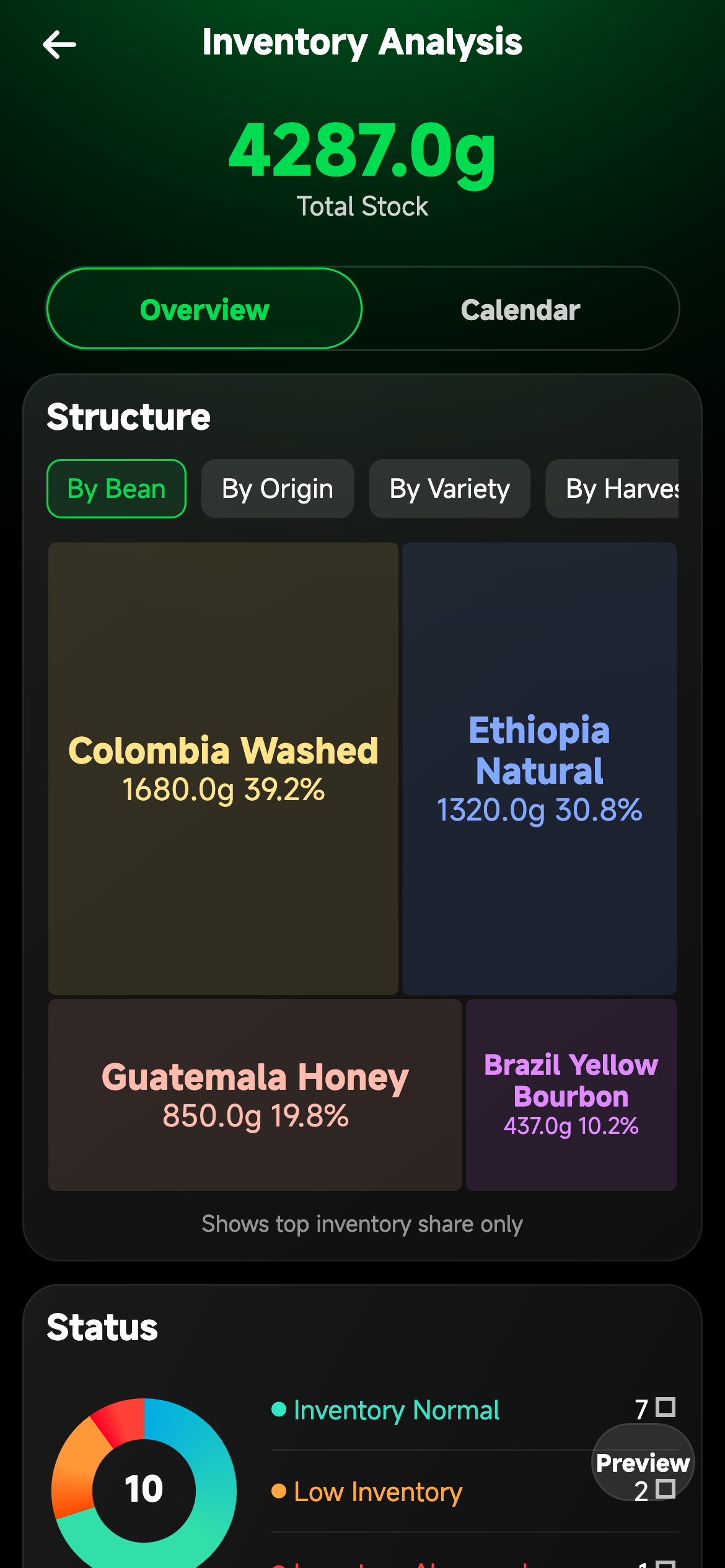
You can use it to:
- review total stock
- switch structure views by bean, origin, variety, or harvest season
- use the inventory calendar to review a specific day's net change
- drill into batch changes and process details
When you need to know exactly what happened to one batch on one day, open the Inventory Details / Process page.
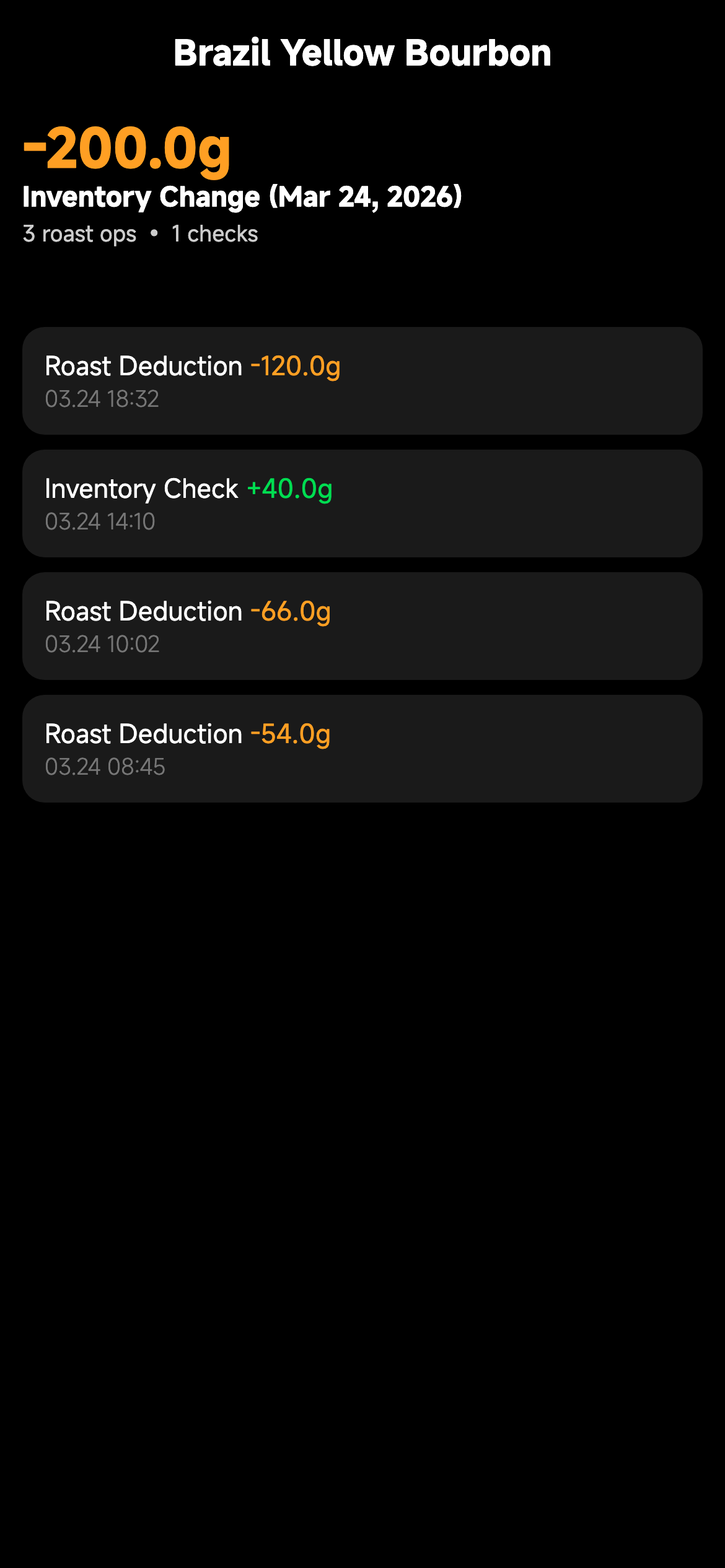
It shows stocktake and roasting-driven changes in time order, which makes it easier to understand why stock decreased or why an abnormal value appeared.
Limits
- Creating a batch does not enable inventory tracking automatically.
- There is currently no UI entry to turn inventory tracking off once it has been enabled.
- Roast history from before tracking was enabled is not backfilled into inventory deductions.
- Inventory rules apply only to tracked batches.
- The stocktake input does not allow negative numbers, but roasting deductions can still result in negative inventory.
- This guide does not promise a public multi-batch bean allocation workflow.
Notes
- Negative inventory should be treated as an exception that needs stocktake correction, not as a valid long-term stock state.
Ignore Warningfor low stock turns off the low-stock reminder for that batch; it does not change the stock value.- Ignoring an abnormal warning is only a temporary hide action, not a real resolution.
Today, calendar grouping, and daily detail pages are grouped by the device's local timezone and local calendar day.- Vendor, price, and purchase date fields can still be used for reference, but they are not a purchasing system and do not replace the inventory workflow.
Recommended Practice
- When enabling tracking for the first time, enter the most realistic current stock instead of estimating from purchase weight.
- If inventory and reality drift apart after roasting, correct it with stocktake early instead of letting the error accumulate.
- Set the warning line to the amount you actually consider safe.
- Treat Inventory Analysis as an operational review tool, not a finance or procurement report.